![Knowledge Centerx2-1.png]](https://knowledge.buzzbid.com/hs-fs/hubfs/Knowledge%20Centerx2-1.png?height=50&name=Knowledge%20Centerx2-1.png)
Applies to: BuzzBID Multi-User version 26.8.1.710.
This known issue can prevent standard users from reading SQL Server Change Tracking information. An elevated user may be able to complete the same workflow, which helps identify the permission difference.
Administrator required: This procedure changes database permissions. An authorized SQL Server administrator must run it only against the affected BuzzBID application database.
Before you begin
- Open SQL Server Management Studio (SSMS).
- Know the SQL Server instance and BuzzBID application database.
- Use an account that can grant object permissions.
- Make sure every user is fully logged out of BuzzBID.
Step 1: Confirm the symptom and version
- Confirm the affected installation is BuzzBID Multi-User version 26.8.1.710.
- Repeat the action that produced the problem.
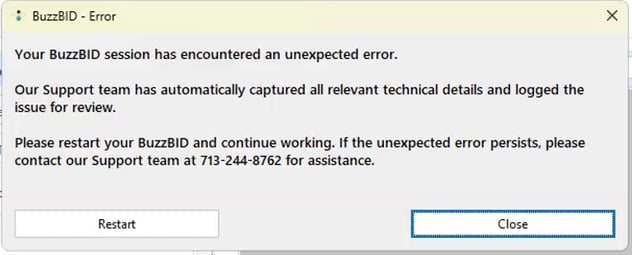
- Confirm the user receives the BuzzBID - Error popup shown above.
- If the version or symptom does not match, stop before changing database permissions.
Step 2: Fully log out of BuzzBID everywhere
- Ask every user to save their work.
- In BuzzBID, locate Exit Window.
- Select Log Out, directly below Exit Window.
- Confirm BuzzBID returns to the sign-in screen.
- Repeat on every connected workstation and in any BuzzBID session running directly on the server.
- After the sign-in screen appears, close BuzzBID if it is still open.
Important: Exit Window is not the same as Log Out. Continue only after every active user and server-hosted session has been fully logged out.
Step 3: Connect to the correct database in SSMS
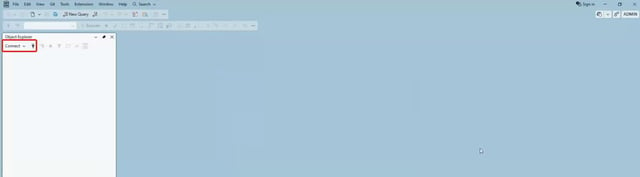
- Open SQL Server Management Studio.
- In Connect to Server, select Database Engine.
- Enter the SQL Server instance that hosts the BuzzBID Multi-User database.
- Connect with an account authorized to grant object permissions.
- In Object Explorer, expand Databases and select the affected BuzzBID application database.
Stop if the database is uncertain. Confirm it with the SQL Server administrator before continuing.
Step 4: Open a query in the BuzzBID database
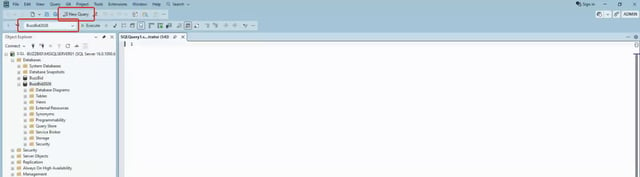
- Select New Query.
- Open the database list on the SSMS toolbar.
- Select the affected BuzzBID application database.
- Read the selected database name again before continuing.
Do not run the script against master or another system database.
Step 5: Copy and paste the repair script
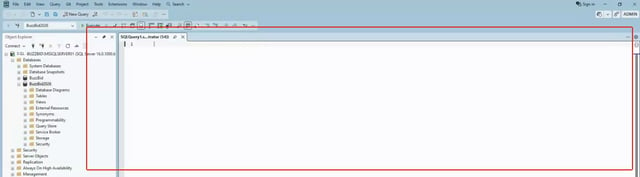
- Copy the complete SQL block below.
- Paste it into the empty SSMS query editor.
- Do not change the role name, permission type, joins, or filters.
- Confirm the database selector still shows the intended BuzzBID application database.
Copy this repair script:
DECLARE @sql NVARCHAR(MAX) = N'';

SELECT @sql = @sql + '
GRANT VIEW CHANGE TRACKING ON ' + QUOTENAME(s.name) + '.' + QUOTENAME(t.name) + ' TO public;'
FROM sys.change_tracking_tables ct
JOIN sys.tables  t ON t.object_id = ct.object_id
JOIN sys.schemas s ON s.schema_id = t.schema_id
WHERE NOT EXISTS (
    SELECT 1
    FROM sys.database_permissions p
    WHERE p.class = 1           -- OBJECT_OR_COLUMN
      AND p.major_id = ct.object_id
      AND p.minor_id = 0          -- Table-level, not column-level
      AND p.type = 'VWCT'         -- VIEW CHANGE TRACKING
      AND p.state IN ('G', 'W')   -- GRANT / GRANT WITH GRANT OPTION
      AND p.grantee_principal_id = DATABASE_PRINCIPAL_ID('public')
);

PRINT @sql;
EXEC sys.sp_executesql @sql;
Step 6: Execute the repair and check Messages
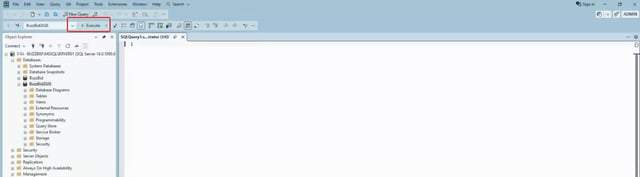
- Select Execute on the SSMS toolbar, or press F5.
- Wait for the query to finish.
- Select the Messages tab at the bottom of the query window.
- Confirm there is no red error text.
The Messages tab prints the individual GRANT statements generated by the script. If every tracked table already has the permission, no GRANT statements are generated.
Step 7: Run the verification query
- Keep the same BuzzBID database selected.
- Open another query window or replace the completed repair script.
- Copy and paste the query below.
- Select Execute.
- Confirm the Results pane returns zero rows.
Copy this verification query:
SELECT
    s.name AS schema_name,
    t.name AS table_name
FROM sys.change_tracking_tables ct
JOIN sys.tables  t ON t.object_id = ct.object_id
JOIN sys.schemas s ON s.schema_id = t.schema_id
WHERE NOT EXISTS (
    SELECT 1
    FROM sys.database_permissions p
    WHERE p.class = 1
      AND p.major_id = ct.object_id
      AND p.minor_id = 0
      AND p.type = 'VWCT'
      AND p.state IN ('G', 'W')
      AND p.grantee_principal_id = DATABASE_PRINCIPAL_ID('public')
)
ORDER BY s.name, t.name;
Expected result: zero rows. If rows are returned, verify the selected database and the connected account's permissions.
Step 8: Reopen BuzzBID and retest
- Return to the affected workstation.
- Open BuzzBID with a standard user account that previously experienced the error.
- Repeat the action that produced the error.
- Confirm the workflow completes without the popup.
Expected result: The standard user's workflow completes without the unexpected-error popup.
Troubleshooting
The repair reports a permission error
Reconnect using an account with enough rights to grant object permissions, or ask the SQL Server administrator to run the procedure.
The verification query returns tables
Confirm the repair completed without errors and was executed in the same database used by BuzzBID.
The issue continues after verification succeeds
- Confirm the workstation is running version 26.8.1.710.
- Confirm the repaired database is used by the affected Multi-User installation.
- Confirm every user fully logged out before the change and logged back in afterward.
- Collect the exact current error and application logs for escalation.
Security note
Granting VIEW CHANGE TRACKING to public makes change tracking information available to database principals that also have the required access to each tracked table. Apply this workaround only to the intended BuzzBID database and according to the organization's database security policy.