![Knowledge Centerx2-1.png]](https://knowledge.buzzbid.com/hs-fs/hubfs/Knowledge%20Centerx2-1.png?height=50&name=Knowledge%20Centerx2-1.png)
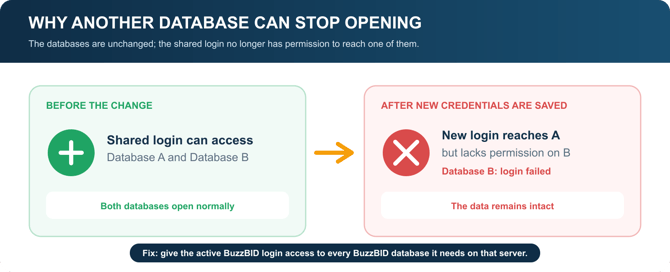
If changing the SQL login for one BuzzBID database causes another database on the same SQL Server to stop opening, the credential change affected the shared server-level login — not the data in the other database.
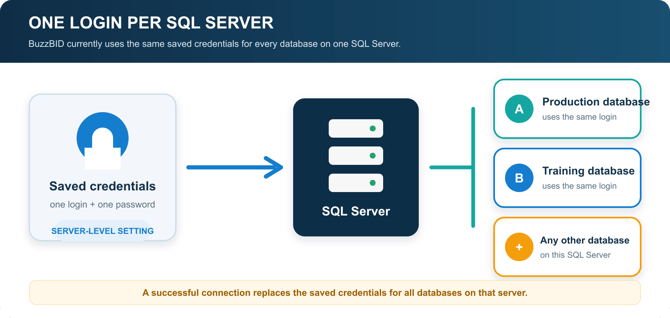
In Multi-User Mode, BuzzBID currently stores one set of SQL Server credentials for each SQL Server or SQL Server instance. BuzzBID uses that same login whenever it opens any BuzzBID database on that server.
What happens when credentials change
When you enter credentials in Database Settings and the connection succeeds, BuzzBID saves that login and password for the entire SQL Server connection. The newly saved credentials replace the previous credentials for every BuzzBID database on that server.
This has two practical effects:
- A successful connection updates the shared credentials. The change is not limited to the database you were testing.
- There is currently no separate login for each database on the same server. BuzzBID cannot use login A for one database and login B for another database on that server.
If the new login can reach only one database, the other databases may display Login failed for user '…' or a message that the database is not accessible.
Restore access now
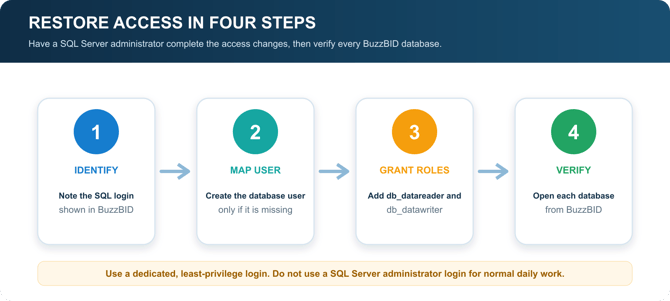
The immediate fix is to give the login BuzzBID is currently using access to every BuzzBID database it needs on that SQL Server. A SQL Server administrator can complete the following steps in SQL Server Management Studio (SSMS).
1. Identify the login BuzzBID uses
In BuzzBID, open Database Settings and note the login shown for the SQL Server connection. The examples below use buzzbid_user; replace it with the actual login name.
2. Grant the login access in each required database
In SSMS, connect with an account authorized to manage database security. Run the following once in each BuzzBID database, replacing YourBuzzBIDDatabase and buzzbid_user with the correct names:
USE [YourBuzzBIDDatabase];
GO
CREATE USER [buzzbid_user] FOR LOGIN [buzzbid_user];
ALTER ROLE [db_datareader] ADD MEMBER [buzzbid_user];
ALTER ROLE [db_datawriter] ADD MEMBER [buzzbid_user];
GO
If the database user already exists, skip the CREATE USER statement and run only the two ALTER ROLE statements.
Repeat this for every BuzzBID database the login must open. Do not grant access to databases the login does not need.
3. Use the right permission level
For normal day-to-day BuzzBID use, the db_datareader and db_datawriter roles provide the standard data access described in this guide. A BuzzBID version upgrade that changes the database structure requires an administrator login or temporary db_owner membership.
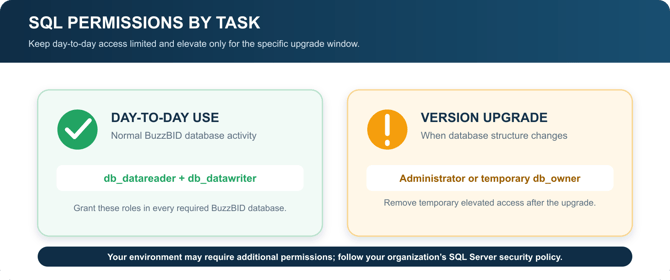
Security recommendation: Use a dedicated, least-privilege login for normal BuzzBID operation. If db_owner is granted temporarily for an upgrade, remove that elevated access after the upgrade is complete. Follow your organization’s SQL Server security policy if it requires different or additional permissions.
4. Verify every database in BuzzBID
Return to BuzzBID and open each required database from the database list. Every database should now open without a login error. No BuzzBID reinstall is required.
If a database still fails, confirm that:
- You updated the exact SQL Server or SQL Server instance BuzzBID uses.
- The database user is mapped to the correct SQL Server login.
- The login has the required role membership in the database that fails.
- BuzzBID is still using the login you just configured.
Recommended practice
- Use one dedicated SQL login for the BuzzBID databases on a server.
- Grant that login access only to the BuzzBID databases it needs.
- Add the required database access whenever you create or restore another BuzzBID database on that server.
- If your environment and BuzzBID configuration support Windows Authentication, work with your IT team to use named Windows access instead of a shared SQL password.
- Do not use a SQL Server administrator login for normal daily work.
Frequently asked questions
Why did another database suddenly stop opening when I did not change it?
A successful connection most likely saved a different login for the shared SQL Server connection. BuzzBID then tried that login against the other database, where it did not have permission. Granting the active login access to that database restores the connection.
Did anything happen to my data?
No. A login failure is an access problem. The database and its estimates remain intact; BuzzBID cannot open them until SQL Server authorizes the saved login.
Can databases on different SQL Servers use different logins?
Yes. Credentials are stored per SQL Server or SQL Server instance. Databases on separate servers can use different credentials. The shared-login limitation applies to databases that use the same server connection.
Does this affect Single-User (local) Mode?
No. Single-User Mode uses a file-based database on the local computer and does not use SQL Server credentials. This guide applies only to Multi-User Mode.
What is BuzzBID improving?
BuzzBID plans to support credentials at the individual database level so databases on the same SQL Server can use different logins. Until that capability is available, treat SQL Server credentials as shared across all BuzzBID databases that use the same server connection.
Need help?
If these steps do not restore access, contact BuzzBID Support. Include the exact error message, the SQL Server or instance name, and the name of the database that will not open. Do not send passwords.
Applies to: BuzzBID Multi-User Mode (SQL Server) | Audience: BuzzBID administrators and IT teams | Last updated: August 31, 2026