![Knowledge Centerx2-1.png]](https://knowledge.buzzbid.com/hs-fs/hubfs/Knowledge%20Centerx2-1.png?height=50&name=Knowledge%20Centerx2-1.png)
Applies To: BuzzBID multi-user installations using Microsoft SQL Server and SQL Server Management Studio (SSMS).
Use this guide before a BuzzBID database update and whenever BuzzBID stops opening after an update because new tables were created under a user-specific SQL schema instead of dbo.
This can happen when the database user that runs the update has a default schema such as DOMAIN\UpdateUser. Existing dbo tables may update correctly, while newly created tables are placed in the user's default schema. BuzzBID then looks for those tables under dbo and fails.
Important: Complete recovery work during a maintenance window. Keep users out of BuzzBID, verify the selected database, and make a current SQL backup before moving tables.
What the Problem Looks Like
BuzzBID may display an unexpected-error popup immediately after the update.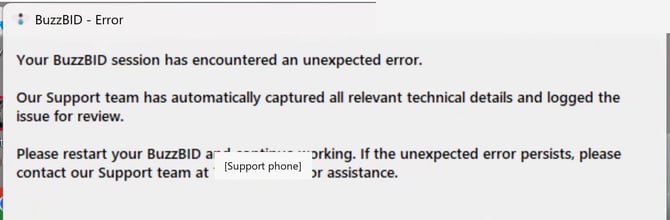
The SQL error may be error 208 and identify a missing dbo table introduced by the latest migration:
Invalid object name 'dbo.DefaultIndirectCostMarkupLaborHoursPair'.Prevent the Problem Before an Update
Step 1 — Open the Update Login in SSMS
- Open SQL Server Management Studio and connect to the SQL Server that hosts the BuzzBID database.
- In Object Explorer, expand Security.
- Expand Logins.
- Right-click the login that will run the BuzzBID update, and select Properties.
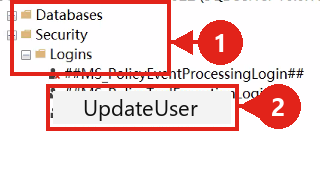
Step 2 — Open User Mapping
In the Login Properties popup, select User Mapping in the left panel.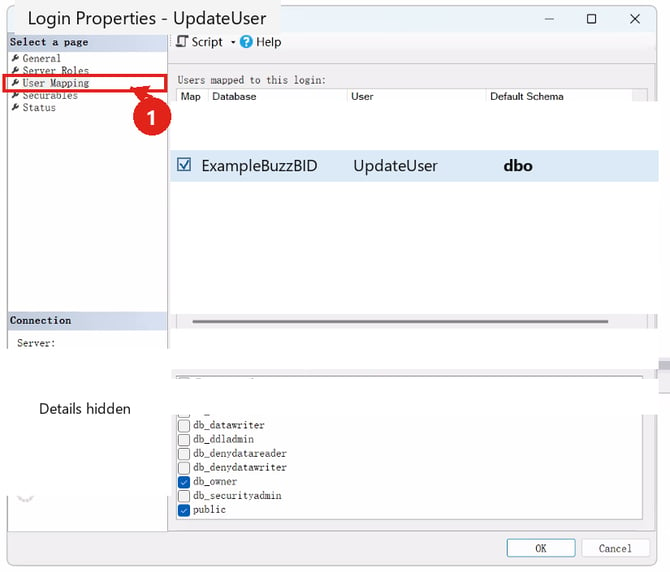
Step 3 — Set the BuzzBID Database's Default Schema to dbo
- Find the BuzzBID database in Users mapped to this login.
- Select the checkbox beside that database.
- In Default Schema, enter
dbo.
Step 4 — Save the Change
Select OK.
Step 5 — Verify the Setting
Open a new query window for the BuzzBID database. Replace the example user with the database user shown in User Mapping, then run:
SELECT name AS DatabaseUser, default_schema_name AS DefaultSchema FROM sys.database_principals WHERE name = N'DOMAIN\UpdateUser';The expected DefaultSchema is dbo. If the UI setting cannot be changed, a database administrator can run:
ALTER USER [DOMAIN\UpdateUser] WITH DEFAULT_SCHEMA = [dbo];Note: The default schema is configured inside each database. Confirm it for the specific BuzzBID database being updated.
Step 6 — Record the Database Version
Run this query and save the latest MigrationId and ProductVersion with the update record:
SELECT * FROM [dbo].[__EFMigrationsHistory] ORDER BY MigrationId;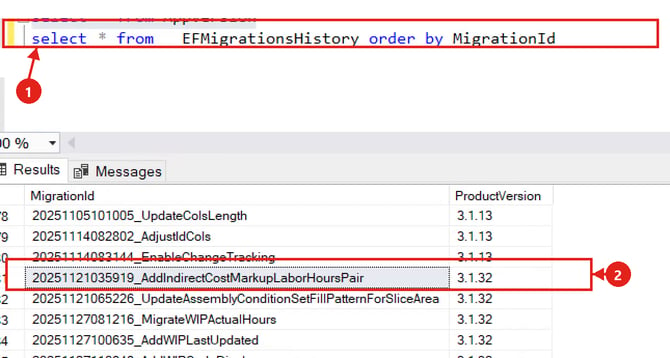
Step 7 — Record Table Counts by Schema
SELECT s.name AS SchemaName, COUNT(*) AS TableCount FROM sys.tables AS t JOIN sys.schemas AS s ON t.schema_id = s.schema_id GROUP BY s.name ORDER BY TableCount DESC;BuzzBID application tables should be under dbo. Investigate a user-specific schema containing application tables before updating.
Diagnose the Problem After a Failed Update
Step 1 — Confirm the Migration Completed
Run the migration-history query above. If the latest migration appears even though BuzzBID fails to open, continue.
Step 2 — Count Tables in Each Schema
Run the table-count query above. In this example, dbo contains the original 176 tables and a user-specific schema contains the 15 new tables. Counts vary by version; the warning sign is that BuzzBID tables are split between dbo and a user-specific schema.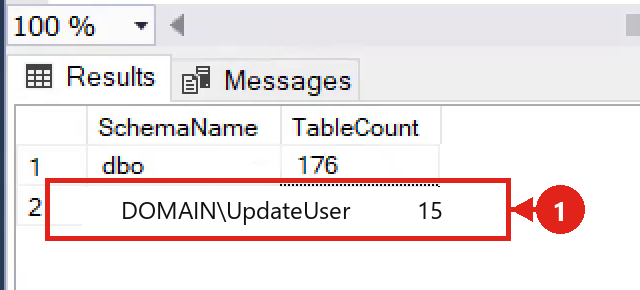
Step 3 — List Tables Outside dbo
Replace the example value with the schema found in Step 2:
DECLARE @WrongSchema sysname = N'DOMAIN\UpdateUser'; SELECT s.name AS SchemaName, t.name AS TableName FROM sys.tables AS t JOIN sys.schemas AS s ON t.schema_id = s.schema_id WHERE s.name = @WrongSchema ORDER BY t.name;If the wrong schema contains views, stored procedures, functions, or other object types—not only newly created tables—stop and escalate for database review.
Repair Tables Created Under the Wrong Schema
Step 1 — Stop BuzzBID and Back Up the Database
- Close BuzzBID on every workstation.
- Confirm the SQL Server and database selected in SSMS.
- Make a current database backup.
- Connect with an account authorized to transfer the tables and alter the
dboschema.
Step 2 — Correct the Update User's Default Schema
Complete the prevention steps before moving tables so a later migration does not create more tables in the wrong schema.
ALTER USER [DOMAIN\UpdateUser] WITH DEFAULT_SCHEMA = [dbo];Step 3 — Check for Duplicate Table Names
This query must return zero rows. If it returns a table name, stop. Do not overwrite, drop, or merge either table without a separate data review.
DECLARE @WrongSchema sysname = N'DOMAIN\UpdateUser'; SELECT source_table.name AS ConflictingTable FROM sys.tables AS source_table JOIN sys.schemas AS source_schema ON source_table.schema_id = source_schema.schema_id JOIN sys.tables AS destination_table ON destination_table.name = source_table.name JOIN sys.schemas AS destination_schema ON destination_table.schema_id = destination_schema.schema_id WHERE source_schema.name = @WrongSchema AND destination_schema.name = N'dbo';Step 4 — Save Existing Object Permissions
SQL Server removes permissions attached to an object when ALTER SCHEMA moves it. Save this result before the transfer so required permissions can be restored.
DECLARE @WrongSchema sysname = N'DOMAIN\UpdateUser'; SELECT OBJECT_SCHEMA_NAME(p.major_id) AS SchemaName, OBJECT_NAME(p.major_id) AS ObjectName, principal.name AS Grantee, p.state_desc AS PermissionState, p.permission_name AS PermissionName FROM sys.database_permissions AS p JOIN sys.database_principals AS principal ON principal.principal_id = p.grantee_principal_id WHERE p.class = 1 AND OBJECT_SCHEMA_NAME(p.major_id) = @WrongSchema ORDER BY ObjectName, Grantee, PermissionName;Step 5 — Preview the Transfer Commands
Replace the example schema. Run this block, then review every line returned in StatementsToReview. Each line must transfer a table from the wrong schema to dbo.
DECLARE @WrongSchema sysname = N'DOMAIN\UpdateUser'; DECLARE @sql nvarchar(max) = N''; SELECT @sql += N'ALTER SCHEMA [dbo] TRANSFER ' + QUOTENAME(s.name) + N'.' + QUOTENAME(t.name) + N';' + CHAR(13) + CHAR(10) FROM sys.tables AS t JOIN sys.schemas AS s ON t.schema_id = s.schema_id WHERE s.name = @WrongSchema ORDER BY t.name; SELECT @sql AS StatementsToReview;Step 6 — Transfer the Tables to dbo
After reviewing the statements, run this block in the BuzzBID database:
DECLARE @WrongSchema sysname = N'DOMAIN\UpdateUser'; DECLARE @sql nvarchar(max) = N''; SELECT @sql += N'ALTER SCHEMA [dbo] TRANSFER ' + QUOTENAME(s.name) + N'.' + QUOTENAME(t.name) + N';' + CHAR(13) + CHAR(10) FROM sys.tables AS t JOIN sys.schemas AS s ON t.schema_id = s.schema_id WHERE s.name = @WrongSchema ORDER BY t.name; IF @sql = N'' THROW 50001, 'No tables were found in the specified source schema.', 1; SET XACT_ABORT ON; BEGIN TRANSACTION; EXEC sys.sp_executesql @sql; COMMIT TRANSACTION;Select Execute in SSMS.
Confirm that SSMS reports Query executed successfully. If a command fails, save the complete error and stop.
Step 7 — Restore VIEW CHANGE TRACKING Where Needed
The affected update required VIEW CHANGE TRACKING on tracked tables for public. This script grants it only where missing:
DECLARE @sql nvarchar(max) = N''; SELECT @sql += N'GRANT VIEW CHANGE TRACKING ON ' + QUOTENAME(s.name) + N'.' + QUOTENAME(t.name) + N' TO [public];' + CHAR(13) + CHAR(10) FROM sys.change_tracking_tables AS ct JOIN sys.tables AS t ON t.object_id = ct.object_id JOIN sys.schemas AS s ON s.schema_id = t.schema_id WHERE NOT EXISTS ( SELECT 1 FROM sys.database_permissions AS p WHERE p.class = 1 AND p.major_id = ct.object_id AND p.minor_id = 0 AND p.type = 'VWCT' AND p.state IN ('G', 'W') AND p.grantee_principal_id = DATABASE_PRINCIPAL_ID(N'public') ); SELECT @sql AS GrantsToReview; EXEC sys.sp_executesql @sql;Restore any additional permissions recorded in Step 4 and confirm successful completion.
Validate the Repair
Step 1 — Count Tables by Schema Again
Run the table-count query again. The user-specific schema should no longer contain BuzzBID tables. In this example, all 191 application tables are under dbo.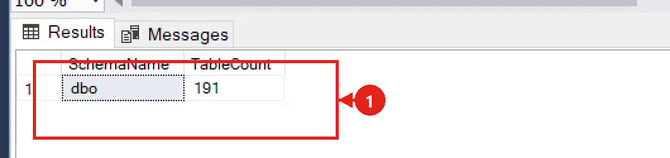
Step 2 — Confirm the Wrong Schema Is Empty
The expected result is zero rows:
DECLARE @WrongSchema sysname = N'DOMAIN\UpdateUser'; SELECT s.name AS SchemaName, t.name AS TableName FROM sys.tables AS t JOIN sys.schemas AS s ON t.schema_id = s.schema_id WHERE s.name = @WrongSchema;Do not drop the empty schema during incident recovery unless its ownership and purpose have been reviewed. The empty schema itself does not cause BuzzBID to fail.
Step 3 — Check Migration History Again
Run the migration-history query and confirm the expected latest migration is still present.
Step 4 — Test BuzzBID With One User
- Launch BuzzBID on one workstation.
- Allow the database update to finish.
- Confirm progress reaches the final step without an error.

- Confirm BuzzBID opens normally.
- Open representative projects and confirm normal access.
- Allow other users back into BuzzBID only after the test succeeds.
Stop and Escalate When
- A current database backup is unavailable.
- The destination
dboschema already contains a table with the same name. - Both source and destination tables contain data that may need to be merged.
- The wrong schema contains non-table objects.
ALTER SCHEMAfails because of permissions or dependencies.- Migration history is incomplete or inconsistent.
- BuzzBID still fails after schema, permission, and update validation.
Information to Include With the Support Case
- BuzzBID version and SQL Server version
- Exact BuzzBID and SQL error text
- Latest rows from
[dbo].[__EFMigrationsHistory] - Before-and-after table counts by schema
- List of objects found outside
dbo - Default schema before and after correction
- Transfer statements executed and permissions restored
- Final BuzzBID test result
References
Screenshots are cropped from the support session at their original pixel scale. Customer names, personal names, project names, server names, database names, usernames, connection details, and unrelated interface areas were removed or replaced with generic examples.