
Here's a quick reference for BuzzBID keyboard shortcuts
General - Key Combinations
|
Key 1 |
Key 2 |
Action |
Short Description |
| Ctrl | Shift | Selection | Selects multiple rows for various actions. |
| Ctrl | A | Select All | Selects all objects on the current page or window. |
| Ctrl | C | Copy | Copies the selection to memory for pasting in another location. |
| Ctrl | D | Detail View | Changes the mouse mode to Detail View mode in the Plans tab. |
| Ctrl | H | Highlight | Changes the mouse mode into Highlight mode in the Plans tab. |
| Ctrl | O | ClickONCE | Activates or deactivates ClickONCE. |
| Ctrl | P | Opens the Print window in the Plans tab. | |
| Ctrl | R | Dimension | Activates the Dimension Ruler mouse mode. |
| Ctrl | S | Setup | Opens the Setup window. |
| Ctrl | V | Paste | Pastes the contents in memory to a selected location. |
| Ctrl | X | Cut | Removes the highlighted selection and adds it to memory for pasting in another location. |
| Ctrl | Y | Redo | Reverses previous actions in stepped chronological order that were done by using the UNDO shortcut. |
| Ctrl | Z | Undo | Deletes the previous actions in stepped chronological order. |
| Tab | Shift | Movement | Moves to the previous data entry field for action. |
| Ctrl | ↓ | Movement | On Assembly or Library Detail Items, will navigate to the next Assembly. Same action as clicking the "NEXT" button. |
| Ctrl | ↑ | Movement | On Assembly or Library Detail Items, will navigate to the previous Assembly. Same action as clicking the "PREV" button. |
| Ctrl | ← | Expand | On lists that can be expanded / collapsed, this will expand the currently collapsed selection. Same action as clicking on the collapsed section. |
| Ctrl | → | Collapse | On lists that can be expanded / collapsed, this will collapse the currently expanded selection. Same action as clicking on the expanded section. |
| Ctrl | Ctrl | Zoom | Clicking Ctrl key twice will set the current page Zoom to full. This is the same as using the "Zoom Extent" icon.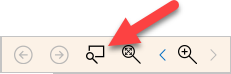 |
Modes
|
Key |
Action |
Short Description |
| Ctrl | Zoom | Temporarily toggles cursor to Zoom mode. |
| Alt | Pan |
Temporarily toggles cursor to Pan mode. |
| Space | Takeoff | On the Plans Tab, toggle between any current selector, and the the Arrow selector. |
Navigation
|
Key |
Action / Area |
Short Description |
| Space | Assembly Detail | On an Assembly Item, will open the Item Selection List. |
| General Condition Description | Adds a new blank row below the current General Condition Item, and opens the General Conditions selection list. | |
| Enter | Projects List | Switches to the Plans tab for the currently selected Project. |
| Assembly Takeoff List | Opens the Assembly Detail. | |
| Bid Recap | Opens the Indirect Costs for the currently selected Spec Section. | |
| Create New Item | Pressing Enter after keying in a non-existing item will add the new item. | |
| Shift | Linear Alignment | When using the keyboard arrow keys to position a selected linear, it moves 5-pixel positions. Holding the Shift key will refine the movement of the linear to only 1-pixel position. |
| Create Radius | Click-drag on the center anchor of a linear while holding the Shift key will create a linear radius. | |
| F2 | Label Edit Mode | On Plans, Takeoff, Assembly, when focused (highlighted), pressing the F2 key will enable label edit mode. |
| Tab | Navigation | Moves to the next data entry field for action. |
| Insert | Insert | Add new Project, Bid, Alt, Assembly, or Item. |
| Home | Plan Page Navigation | The Home key will navigate to the first Plan in your Plan Set. |
| End | Plan Page Navigation | The End key will navigate to the last Plan in your Plan Set. |
| Esc | Escape | Dismisses the current action. |
| Delete | Deletes Entry | Deletes any currently focused (highlighted) item(s). |
| PgUp | Page Up | Advances viewing panel up by a full page height. |
| PgDn | Page Down |
Advances viewing panel down by a full page height. |
| ↑ | Up | Advances selection Up by one increment. |
| ↓ | Down | Advances selection Down by one increment. |
| → | Right | Advances selection Right by one increment. |
| ← | Left | Advances selection Left by one increment. |